FrameKit: A Website, Client Galleries, Video Feedback and a Store in One App (AppSumo Lifetime Deal)
FrameKit puts an AI website builder, client photo galleries, video feedback, a store and slide decks in one account. I gave it an 8.7/10. Here's what works, what's slow, and which tier I'd buy.

If you're a photographer, a filmmaker, or any kind of creative freelancer, FrameKit is worth a serious look. It gives you a website, client photo galleries, video feedback, a store, and slide decks in one account, and the AppSumo deal is a one-time payment. I gave it an 8.7 out of 10. It's a really strong app, and I'm super impressed. My one big complaint is speed.
If you buy it, skip Tier 1 and get Tier 2. If you work with video, go straight to Tier 3. I'll explain why below.
Quick disclosure: AppSumo sponsored my video on FrameKit. They're not paying me to say nice things about FrameKit. They want me to promote AppSumo, and they gave me free access to FrameKit so I could go through every part of it. If you decide to buy it, here's my link: FrameKit on AppSumo. It helps support what I make.
The pile of apps problem
Think about what a working creative pays for just to look professional to clients.
You need a website builder, of course. Then a gallery app so you can deliver the photos. If you do any video, you need a video review tool so clients can leave notes on your edit. If you sell your own products (downloads, preset packs), you need e-commerce tools too, because you can't leave that money on the table. And when you have a big pitch tomorrow, you need something to build the deck.
That's five or more bills. And every client you work with gets links from five different companies. None of it looks like it came from the same person.
FrameKit is a lifetime deal on AppSumo that tries to put all of that in one account, and it uses AI to do a lot of the building and editing for you. You don't need to be a software developer to use it.
Pricing first: sites, storage, and AI credits
I usually talk about pricing at the end. With a tool like this, you need to know two things right away: how many sites you can build, and how many AI credits you get.
AppSumo offers three tiers:
| Tier 1 | Tier 2 | Tier 3 | |
|---|---|---|---|
| Price (when I checked) | $89 | $189 | $389 |
| Sites | 1 | 5 | 15 |
| Storage (shared across everything) | 300 GB | 300 GB | 2 TB |
| AI credits (one time) | 600 | 2,000 | 4,500 |
| Custom fonts and unlimited forms | No | Yes | Yes |
| FrameKit fee on store sales | 0% | 0% | 0% |
Otherwise the features are the same across all three tiers. The only things that change are the number of sites, the storage, and the AI credits.
Storage is shared. The 300 GB on Tiers 1 and 2 covers everything you do in FrameKit: galleries, videos, store files, all of it. If you upload a lot of video, that's the reason to think about Tier 3 and its 2 TB.
Custom fonts and forms. If you have your own brand font and it matters to you, you need at least Tier 2.
The AI credits are one time. This is the important one. A lot of AppSumo deals come with credits that renew every month. FrameKit's don't. You get 600, 2,000, or 4,500 credits, and that's it. If you run out, FrameKit sells more ($10 gets you 1,000 credits), and you can also connect your own API key or your own AI agent. So there are ways around it.
My account also showed 100 regular credits that reset each month, on top of the AppSumo credits. If you're only making updates, those 100 might be enough.
And I'll spoil this now: when I first saw those numbers, I didn't think it sounded like a lot of credits. Who knows what a credit even is? But I did a lot of testing, and I barely touched my balance. (More on that in the AI section.)
The 0% store fee is a really good deal. On every AppSumo tier, you pay no FrameKit fee when you sell products. On FrameKit's regular monthly plans, the Starter plan charges 5%, the Pro plan charges 3%, and only the Business plan, which is quite expensive per month, gets 0%.
Tiers 1 and 2 are tied to the Pro plan, and Tier 3 is tied to the Business plan. That still matters: new features that get added later go to those plans, and you only get them if you're on the right one. If you can see yourself growing with FrameKit, the top tier gets the most features long term.
You get lifetime access, and there's a 60-day refund window. That's plenty of time to try it yourself.
First look: the dashboard
The main dashboard is nice and clean, and it feels a little artistic, which is on point for who it's built for. I really like the interface. It's simple, but it has an identity.
From there you can:
- browse templates
- build an AI website from scratch
- create a client gallery to deliver your photos
- set up a video review so clients can leave frame-accurate feedback
- sell digital products in the store
- build slide decks, proposals, and lookbooks
Everything is also in the sidebar, which stays there while you build. You can collapse it so it's out of your way.
There's a lot here. Honestly, the website builder and the deck builder could each be their own product.
Templates
Templates are the fastest way to see if a tool like this clicks with you.
These are real visual templates, the old-fashioned way. You don't just get a prompt that the AI turns into something. I like that, because I want to see what I'm going to get before it builds.
My only holdup with templates is that the interface is a little slow. The first template took seven or eight seconds to show up. That one had a lot of video and motion, so I gave it a pass. But the more I used FrameKit, the more I saw it as a recurring theme: images load slower than I'd like.
Each template shows up in a small window, and there's a button to preview it in a full browser window so you can feel what the real site would be like. The first one I opened was a high-end personal brand site for a filmmaker, with work you can filter by category (documentary, commercials, television), plus testimonial, FAQ, and contact sections. If you're a photographer or videographer, it's a really nice page to promote yourself.
There are dozens and dozens of templates. If that one doesn't fit, there are templates for agencies, filmmakers, photographers, online stores, courses, weddings, restaurants, landing pages, and more. Decks have their own tab with pitches, proposals, portfolios, and reports.
What I like most: they don't look like AI slop templates. They look like a real human designer made them.
Editing a site by hand and with AI
I picked a creative agency template called Still & Co, clicked Use template, and it dropped me right into the editor.
On the left is a chat window where you ask the AI to do things. You can attach reference images and files and pick the model. FrameKit has its own models: Cadence is for premium, complex work, and Score is for fast, everyday edits. Or you can leave it on Auto and it picks for you.
You don't have to use the AI for everything, though. You can click right on the page and type. Still & Co became Swift & Co just like that. You can jump between pages, write in the editor, and use slash commands to add basic blocks or pre-built components.
My first real gripe: components don't match their labels
The components look nice, but the filtering isn't great. I chose the pricing section, and there weren't any actual pricing tables in it. The "banners" aren't what I'd call banners; they're more like hero sections. The components don't always match what the label says.
When I did find a good one, like a testimonial wall, it was pretty cool, because it adapted to the style of the page. It didn't look pasted in. And if you don't like a section, it's easy to delete it and try another.
The editor panel
On the right you get a standard editor for content, colors, and layout. I think that's the right amount for a regular person. This isn't built for web developers who want pixel-perfect control over every CSS setting. It's built for someone who wants to replace their Squarespace bill with something more focused on creative freelancers.
There's a navigation menu where you can add pages and sub-pages, and clicking an existing page jumps the preview right there. There's also a color editor for the whole site or page by page.
AI on a single section
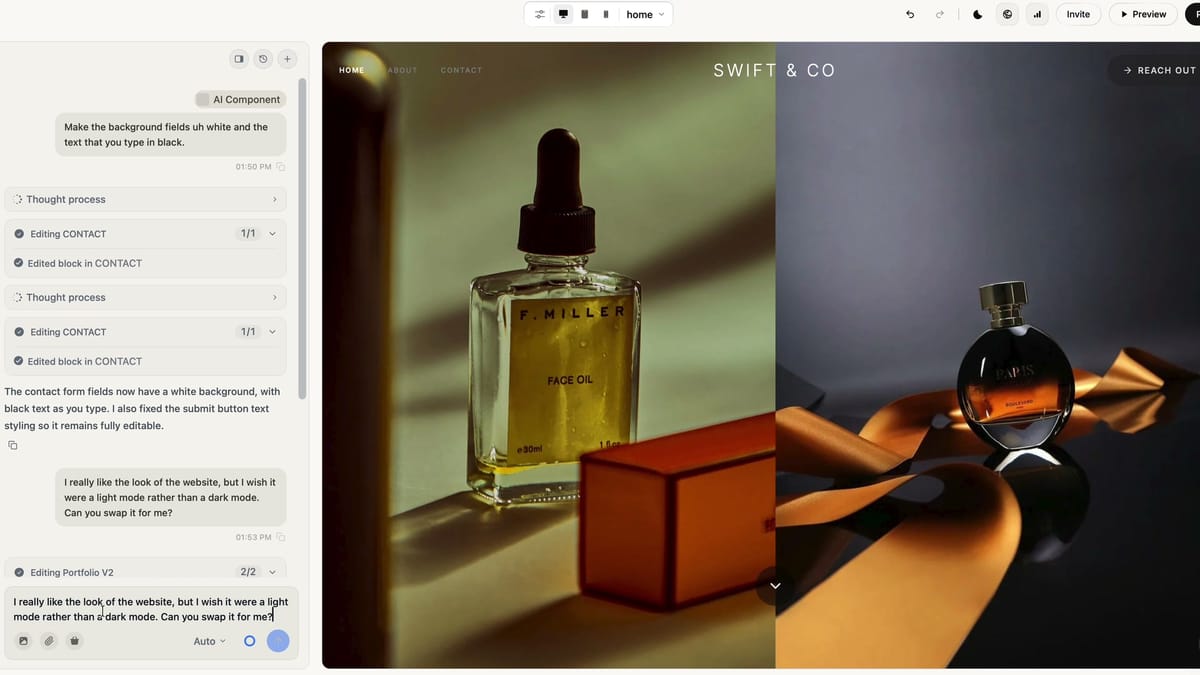
Here's a nice touch. When you click the AI button on a section, it attaches that section to your prompt, so the AI knows exactly what you're talking about. I asked it to make the form fields white with black text instead of the other way around. It did it perfectly, and quickly.
You can also press Command-L anywhere you're working to slide out the AI editor.
AI on the whole site
I tried the AI editor pretty extensively. The agency template is a dark design, and I asked it to keep the layout and the content exactly the same but switch the whole thing to a light theme. I sent one prompt and almost everything changed, and it looked really good. It missed the header at the top, so I asked it to fix that, and it did.
So you can completely change the feel of a site without doing much work. It really feels like magic, especially to someone who's worked on websites for well over a decade.
Site settings
A quick run through the settings:
- Sticky navigation, so the menu stays put as you scroll.
- A site scale slider to make the whole site bigger or smaller.
- Tablet and mobile previews.
- Translation into dozens of languages. I asked it to translate a site to Hindi, hit auto-translate, and it did.
- General settings for site name, description, favicon, and currency.
- FrameKit branding is off by default, which is a nice touch (at least on my AppSumo account).
- Custom domain, or a free framekit.ai address.
The cookie consent banner is fine for a basic notice, but it doesn't actually block cookies. If you need strict compliance, you'll need something more complete. (I'm not a lawyer, and this isn't legal advice.)
There's a separate SEO page with the Open Graph image and keywords. There's not much on it, and a lot of the general settings belong there too, so I think they should combine the two pages.
Two SEO gaps bother me a little:
- You can add custom code to the header or footer, but only site-wide. There's no way to add it to a single page.
- Each page gets its own title, description, and URL slug, but there's no per-page social image. If people share individual pages from your site, that matters. It's a small concern, but it's a concern.
There are some built-in analytics. It doesn't pull from Google Analytics; FrameKit shows its own numbers.
Form submissions come together on one page, so you can see which forms are getting submitted and choose who gets notified. That's really useful if you're building sites for clients. With the top tier you get 15 sites, so you could build sites for a few local photographers, or friends who need to do a better job promoting their business.
On that note: team members join a site with an invite link, but everyone joins as an administrator. There are no user roles right now. I'd like a way to lock the site down but still let some people add content.
Building a site from scratch with AI
The templates are great, but the big pitch is AI throughout the tool. So I built a website from one prompt.
I asked for a site for a modern recording studio that's all about real human connection, actual performances, and vintage analog gear, but still modern enough to clean up your best takes (because nobody's perfect). Basically a studio for musicians who want the classic recording experience from 20 years ago.
Before it builds, it asks a few quick questions:
- Style: I picked one called Noir Editorial.
- Pages: I took all of the pages it offered.
- What should visitors do? Book a session.
- Who is it for? Bands and live groups.
- Color palette: I told it to choose for me.
Then it gets to work, and you can watch each step. A sidebar shows what it's thinking, and the preview starts building pretty quickly. At one point it was searching for stock photos of vintage analog studios and tape machines.
It named the studio STILL / LOUD, which is honestly a surprisingly cool name. The big headline says "Make it real." I don't love that it split the headline onto two lines, but that's more of a taste thing. The copywriting talks about vintage signal paths and human decisions, and there's a nice "Book a session" button. Overall, it's really strong copy. Much better than most musicians I know could write.
The credits held up
Remember those one-time credits? Partway through building this four-page site, I checked my balance. Every edit up to that point had used two credits. Not 200. Two. In my experience, they go a long way.
Why fast previews matter
I recently made a video on SiteSkite, another AppSumo deal with an AI site builder. It's worth a look if you're in the WordPress space. Its AI builder did a decent job, but it's probably better suited to local businesses, it took a really long time to get results, and its editor wasn't nearly as good as FrameKit's.
I can tell within a minute or two whether I like the direction of a site. So I want to see a preview as fast as possible, so I can step in before it builds the whole thing without any feedback. If I don't like it, we have to start over. FrameKit gets this right.
It wasn't perfect
When it finished, the studio and gear pages had scenic photos that had nothing to do with a recording studio. So I switched to the fast Score model and asked it to replace all the images with music-appropriate ones: show the gear where we talk about gear, show the recording room where we talk about the studio.
It hit an error along the way, but it fixed itself and kept going page by page. Now it's all music, and the pictures look phenomenal. The gear page shows tape machines and mixing boards. Not every photo matches the exact gear listed on the page, but that's where you'd put photos of your own equipment anyway.
That's an important point. I was only testing what it can do. If this were my real website, or a client's, I'd use my own photos or theirs, properly licensed, not pictures of gear I don't own. Photographers will appreciate that it pulls real stock photography rather than AI-generated images.
The AI site builder really impressed me, and I liked using it quite a bit, which honestly I didn't expect.
Slides and pitch decks
Slides work like the site builder: you can start from a template (the project proposal template looks like a high-end, expensive pitch deck) or from a prompt.
I started from scratch: build me a five-slide deck for a commercial video shoot for a local business, with past results, a timeline, pricing, maybe availability, and don't forget testimonials.
It asked a few questions, like what should happen after someone sees the deck. Then it asked an interesting but important one: will people see this live, or are you sending it? I chose both, to see what it would do.
It came back with an outline and asked if I had anything real to paste in. I told it I was just testing and to make it as complete and professional as possible. It's like zero AI slop. It looks like a high-end design firm built it.
Then it built the first three slides and stopped to ask if it was on the right track before doing the rest. This is exactly what I was talking about with the website builder. Let me be involved and say whether we're going in the right direction, so it doesn't burn credits on something I don't like.
Where the slides fell short
The testimonials slide lost the plot. It said "clients don't want a beautiful film," when you're talking to the client, so it should say "you don't just want a beautiful film." That's easy to fix with the AI assistant or your own copy, but it's worth pointing out. You're not going to one-shot everything.
I also found the slide editor a little more confusing than the website editor (maybe because websites are my native language). The background picker felt rough. I typed "filmmaking" and got a couple of people in bikinis on the beach. How is that at all related? It's easy to swap out, but it's the same recurring problem: the labels and the results don't always match.
Once you find a background you like, you can add an overlay so the text stays readable, change the tint, set a blend mode, and blur it. It does a lot of design work for you without needing to know CSS or photo editing.
More slide editor details:
- An Edit with AI button across the top, plus a background editor, colors, and layouts.
- Layouts can change the whole look of a slide, but picking the wrong one can mess up the text.
- There's no on-screen undo button, which scared me at first, but Command-Z (Ctrl-Z on a PC) works.
- Presentation mode with speaker notes, full screen, and keyboard controls. It's a decently full-featured presentation tool.
- Elements and layers in the sidebar (like Photoshop), deck colors, and font presets. Custom fonts need Tier 2 or higher.
- You can drag things freely, and alignment guides help line things up. I wish it would snap cards when they're evenly spaced.
Overall the slide editor is really good, but I preferred the website editor. It also felt a little glitchy in Safari, so I'd use Chrome if you're doing a lot of editing.
Client galleries
Galleries are really easy to use. Create a gallery, name it, set the session date, and pick a type: wedding, newborn, headshot, real estate, sports, pets, and lots more. Galleries support seven languages (fewer than the website translations, but the major ones are covered), and you can set the gallery's web address.
I dragged in some stock photos and they uploaded fairly fast. To be fair, they were small files (around 700 KB, a few at 1 to 2 MB), not the full-resolution images you'd deliver to a client.
You can:
- sort photos by name, upload date, or capture date, or drag them around
- set a cover image
- split photos into sets (different locations or different people from the same shoot)
The design tab has layouts. One called Marquee reminds me of the old Cover Flow from iTunes. You can change fonts and colors (light, dark, or custom) and the text color. It automatically darkens the cover photo so everything stays readable. There's no manual control for that, but it's a nice usability touch.
There are also controls for the photo grid: masonry, rows, or squares; small, regular, or large spacing; thumbnails.
Up top, you can see which visitors favorited or downloaded specific photos, and you control whether visitors can favorite or download at all.
When the gallery is ready, you can send it from inside FrameKit using an email template (there's a wedding one that says something like "thanks for letting me be part of your day"), or copy the link and send it however you want.
What your client sees
The photos lazy load as you scroll, which I don't love. I get the technical reason, but for a photo gallery I want everything to just be there and feel finished.
The "View gallery" button at the top only scrolls down the page. I don't think it needs to exist; most people know to scroll.
Click a photo and it opens full screen, and you can flip through with the arrow keys. That was very intuitive and a nice experience. Sometimes there's a quick black flash before a photo shows, but in general it was snappy enough. It all comes back to the same thing: it needs to be a little snappier.
When a client favorites a photo, it asks them to sign in with their email. If downloads are on, they can download after signing in. It works, but again, it's a little slow.
Gallery settings
What if you don't want your photos downloadable? You can turn downloads off, or require a PIN to download. So if you're selling photos, you could wait for the client to pay, then give them the PIN.
You can also:
- password-protect the whole gallery
- require everyone to register with an email, so you can see who's looking at what
- turn on an auto-playing slideshow
- turn the visitor hints on or off
- turn off social sharing
- link a gallery to a client and add tags for organization
- add a watermark with your own logo or text
- set a gallery to expire after a certain date
The galleries are pretty full-featured. The one thing you can't do (at least not built in) is sell photos right from a gallery. For that, you use the store.
The store
In the store, you create a product with a name, description, price, and up to 10 preview images. The file section is what the customer gets after they buy.
I made a landscape pack (aka stock photography I grabbed off the web), charged a dollar, used one photo as the preview, dropped the rest in the file section, and added a thank-you message.
Here's how a photographer could put the whole thing together: a client finds you on the website you built in FrameKit and books a shoot. You do the shoot and send the gallery. They favorite the ones they like. You make a product with those photos, and when they buy it, they get the downloads.
One thing tripped me up: you can only share a product if it's attached to a published site. If your site isn't public yet, you don't get a link to share. There's no standalone checkout link. I think they should change that. It would be really useful to skip the website altogether.
Payments go straight to your own Stripe account, which you connect in the account settings. I didn't connect mine, but the checkout preview looks clean and professional. On your own domain, it'll feel safe to the average person, especially someone who's already booked a shoot with you.
The store also has:
- a revenue dashboard you can filter by date
- a list of orders
- discount codes (percentage or fixed amount, with start and end dates and a usage limit)
You can sell services too. If you have a booking page on your site, you can tell the AI to link a product there, and people can buy a photo shoot or a recording session. They won't schedule it at checkout; you follow up afterward to find a time. When I tried it, the AI added a purchase section right where I asked. It was super easy.
Video review
The last piece is the video review tool. It's for getting client feedback on a video before you hand over the final deliverable. It's the newest part of FrameKit, so it's probably the least full-featured, but it's completely functional. It works like the big video review tools that cost at least $20 a month, often a lot more.
A review works like a folder you can put multiple videos in. Every video counts against your storage, so you might want to compress them first.
The upload was too slow
I uploaded a motion graphics intro, about 200 MB, uncompressed (against my own advice). Several minutes later, it was still only about halfway. I have a really fast connection; I upload multi-gigabyte videos to YouTube in no time. Once it finally got up, it processed quickly and was ready to view. But the upload was way slower than I'd expect.
The player and comments
The player itself is good:
- Comments are timestamped, and you can comment on a range of time, not just one spot.
- You can draw on the frame to show exactly what you mean.
- You can attach files and make comments visible to everyone or only your team.
- You can change playback resolution, switch timecode to frames, loop a section, and change the speed.
- You can react to comments, edit them, or mark them complete (you can turn off marking complete in settings).
You can't type in an exact timecode, which was a bit of a bummer. But you can get close and then step with the arrow keys, and that works quite well.
To try the drawing tool, I circled the taco in my animation and wrote "taco needs to look better." Clicking the timestamp jumped right back to that frame. The drawing does stay on screen while the video plays. Not a huge deal, but it isn't perfect.
Sharing and privacy
The share link opens the video so anyone can watch without logging in. For privacy, you can password-protect it, set it to expire, or require email registration to leave comments. Like the galleries, you can turn downloads of the original file on or off, so you could use it to deliver the final edit too.
There's an activity log of comments, approvals, downloads, and sign-ins, so you can check who actually watched.
For a newer feature, it's more complete than I expected. I'd love to see this kind of feedback in galleries too, for things like wedding photos. But it's totally usable today.
The MCP server
One more thing, and it's kind of a big deal: FrameKit has its own MCP server. You can connect it to Claude, ChatGPT, Cursor, or whatever AI agent you use, and have the agent build or edit your site from there. Connecting it is free.
I'll mention that even FrameKit's MCP page loaded slowly for me. Maybe it was just a bad connection between my home internet and wherever they host it.
What's missing
FrameKit is pretty full-featured, so this list is short.
- It's too slow. Previews take seconds to load, galleries lazy load the photos, and the video upload took way too long. If they fix speed, this will be an absolutely brilliant tool.
- Labels don't match results. Components and backgrounds don't always match what you search for. We're used to everything being instant, so search has to be dialed in.
- No per-page code injection. Header and footer code is site-wide only.
- No per-page social image. I think they could add both of these in an afternoon, and it would add a lot.
- No way to buy extra storage that I could find. I didn't max out my storage, so I don't know what happens when you fill it. If I need an extra 2 TB, can I buy it, or do I have to find another platform?
That last one is why my advice is to buy as much storage as you think you'll need. If you only do photos, 300 GB will probably be fine. If you do video, go for the 2 TB.
My verdict: 8.7 out of 10
FrameKit is a big product, and it works really, really well. It's a hair slow, but for what it's built for, it's one of the best sets of tools I've seen in this space.
I also like that it has an opinion. It's built for people with a skill: photographers, videographers, editors, motion graphics people. It's like getting a whole team without having to hire one. If you're a freelancer who loves your craft and doesn't want to deal with running the business, a tool that gives you a website, client delivery, client feedback, and a store in one place for a one-time payment? Are you kidding me?
There's still a learning curve, especially if you've never built a website. It'll take a minute to figure everything out, even with AI built in. But the AI assistant is right there. You don't have to bother your technical friend every time you get stuck, or even wait for FrameKit support. Ask it how to do something, and it'll either do it or tell you what you need to know.
I'm giving FrameKit an 8.7 out of 10. I hope they figure out the speed issue.
Which tier I'd buy
- Skip Tier 1. Eventually you'll want a branded font, and you'll definitely want forms. Those two things make Tier 2 worth it.
- Tier 2 is where I'd start.
- Tier 3 if you can afford it or you do video. You'll be happy you have 2 TB. Photo shoots are big, video is much bigger, and clients want high-resolution downloads. Do the math on how many bookings you do a year and how much storage that adds up to.
Remember, this is a one-time cost. It's kind of like paying for a year of Squarespace up front, except you don't pay again the next year or the year after that.
You have the 60-day refund window to try it and see if you can build a site that works for your business. If you buy FrameKit, here's my link: FrameKit on AppSumo. It helps support my content.
If you have questions, ask in the comments on the video. I'll be there.
Get Dave's Toolbox
The tools I actually use, every Tuesday. Free. No spam.
No cost. No spam. Unsubscribe anytime.